
Part 2 of a series on GRNI reporting and reconciliation in NetSuite. Part 1 — Reconciling GRNI in NetSuite: Why the Account Balance Isn't Enough covers what GRNI is, how NetSuite posts to it, and a simple PO-level saved search to start your investigation.
Over the years, almost every new customer I take on who buys and sells stock asks me the same question: "Can you give us a reconciliation for our GRNI account?"
The GRNI account—variously called Inventory Received Not Billed (IRNB), Accrued Purchases, or Stock Accrual—sits at the heart of the purchase-to-pay cycle. When you receive goods, NetSuite credits GRNI. When the bill arrives, it debits GRNI. The balance represents receipts awaiting invoices, plus any variances.
Part 1 of this series showed how to break that balance down by Purchase Order using a simple saved search. This article goes a level deeper: how to get a GRNI balance by item. It turns out that is significantly harder, for a reason that is not immediately obvious.
The Core Challenge
At the heart of GRNI reconciliation is the relationship between purchase orders, item receipts, and vendor bills.
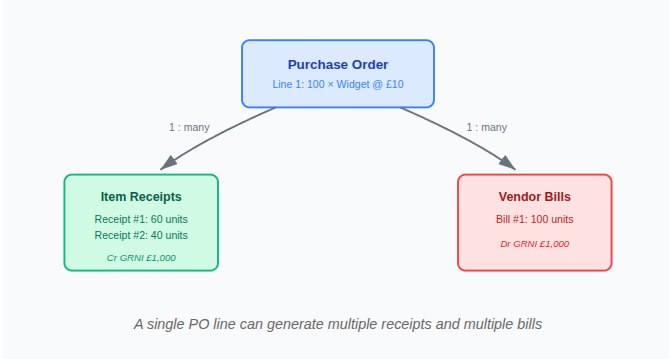
The challenge is that a single purchase order line might be received across multiple shipments and billed across multiple invoices, arriving weeks or months apart. We need a search that gathers all of these and groups them correctly.
Before going further, one point is worth stating clearly, because it is the reason an item-level GRNI search is harder than it looks:
Key insight: The GRNI credit on an item receipt is posted as a single aggregate figure — the total value of all items on that receipt combined. The GRNI posting line does not carry an item reference. The item reference lives on the inventory (stock) posting line on the other side of the double entry. To get a per-item GRNI breakdown, you cannot query the GRNI account on receipts directly. You query the stock account instead, and use that to reconstruct the GRNI value by item.
This is why the simple PO-level search from Part 1 works — it uses mainline = true to get a single net figure per transaction and never needs to split by item. As soon as you need an item breakdown, the structure of NetSuite's posting lines forces a different approach.
Example GRNI Reconciliation Search (Standard Costing)
This saved search works if you are using standard costing. The approach relies on the insight above: instead of querying the GRNI account on receipts, we query the Stock and PPV (Purchase Price Variance) accounts, which are itemised. Since it is double-entry bookkeeping, Stock + PPV will always equal the GRNI credit — so negating the inventory amount gives us the GRNI impact per item.
For vendor bills, journal entries, and bill credits, we query the GRNI account directly — those transaction types do carry item references on their posting lines.
Criteria Tab
The search needs to capture two distinct sets of transactions:
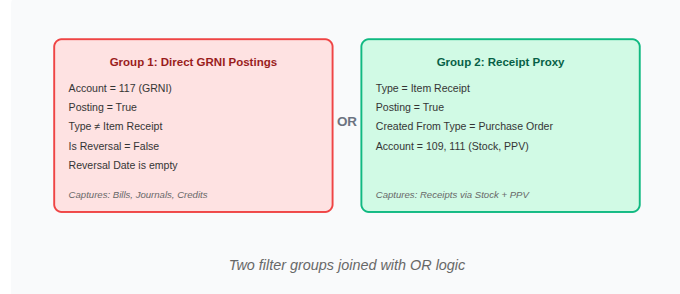
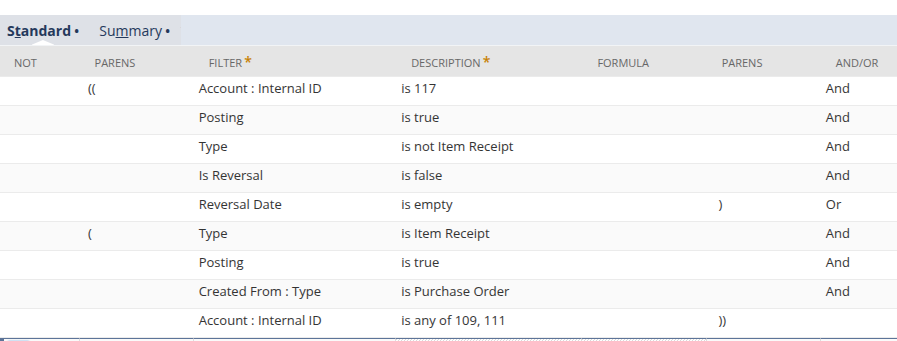
Group 1 finds any transaction posting directly to the GRNI account (117) that isn't an item receipt. This captures vendor bills, vendor credits, and journal entries—the latter being important as these are often used for variance write-offs.
Group 2 finds item receipts created from purchase orders, but instead of looking at the GRNI account, it looks at accounts 109 and 111 (Stock and PPV). These itemised postings give us the GRNI amount per item.
Why exclude receipts from Group 1? Because the GRNI credit on a receipt is posted as an aggregate total. If we included it, we'd double-count and lose the per-item breakdown.
Summary Tab
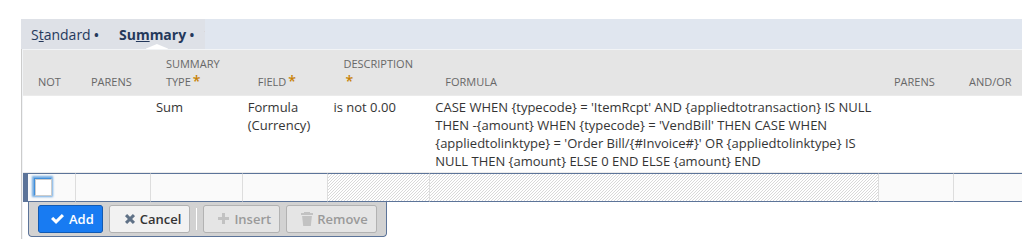
The summary tab adds a crucial filter: only show results where the calculated GRNI balance is not zero.
The formula handles each transaction type differently to reconstruct the correct sign for the GRNI account:
- Item Receipts (queried via Stock/PPV): negate the amount — these represent credits to GRNI
- Vendor Bills linked to a PO via an Order Bill relationship: include the amount as a debit to GRNI
- Vendor Bills with no link type: include as-is
- Everything else (journals, bill credits, revaluations): include the amount as-is
By filtering to SUM ≠ 0, we see only purchase orders with an outstanding GRNI balance — receipts awaiting bills, or variances that have not been cleared.
Results Columns
The results tab groups transactions by purchase order and item, then shows the breakdown:
| Column | Purpose |
|---|---|
| PO Number / Date | Identifies the source purchase order |
| Item | Groups by item within the PO |
| Supplier | Shows the vendor name |
| PO Status | Helps identify if the PO is still open |
| Item Receipt | Sum of receipt amounts (via Stock/PPV accounts) |
| Bill | Sum of bill amounts posted to GRNI |
| Bill Credit | Sum of vendor credit amounts |
| Journal Entry | Sum of journal adjustments to GRNI |
| Revaluation | Sum of FX revaluation entries |
| GRNI Balance | Net balance — the outstanding GRNI amount for this PO/item combination |
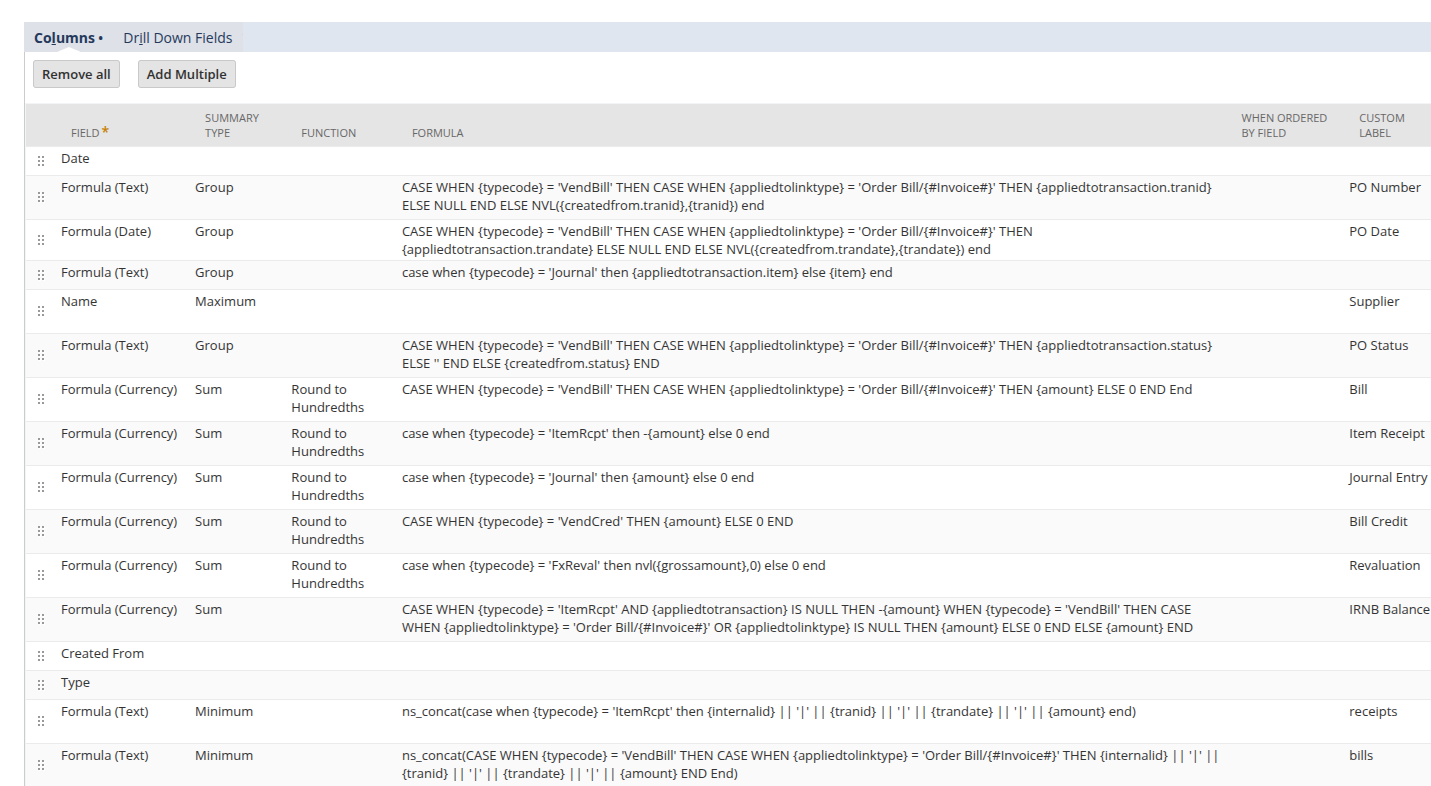
Limitations of This Approach
This search works well for standard costing accounts but has real limits worth understanding before you rely on it:
- Standard costing only: The Stock + PPV proxy works because under standard costing the inventory posting lines are itemised. Under average cost or FIFO costing, the posting structure differs and this approach needs adjusting.
- Multi-PO vendor bills: NetSuite allows a single vendor bill to reference more than one purchase order. When this happens, the
createdfromfield at transaction level is ambiguous. Correctly attributing each bill line to its PO requires working at line level — specifically theappliedtotransactionfield. The search above handles this for most cases but breaks down in complex multi-PO bill scenarios. - Aggregation by item: If a purchase order has multiple lines for the same item, they'll be grouped together and you lose the line-level distinction.
- No receipt-to-bill matching: The search shows totals by PO and item, but cannot tell you which specific receipt matches which specific bill. When a PO has been partially received across multiple receipts and partially billed, you cannot determine which receipt a given bill relates to.
For many accounts, clean flows, modest transaction volumes, standard costing, this search is sufficient. Where it falls short, the answer is either scaling the architecture (covered in Part 3) or moving to explicit receipt-to-bill matching at line level (covered in Part 4). Part 4).
Fowlers Consulting Services Ltd are an AI-first NetSuite consultancy based in the UK. If item-level saved searches aren't enough, our MatchPoint platform can take on GRNI reconciliation directly. If you are struggling with GRNI reconciliation, or any other area where NetSuite's standard reporting falls short, get in touch.
Next in this series: Scaling GRNI Reporting — From Saved Search to a Suitelet with Map/Reduce